
Managing your cap table
Your cap table is built from two kinds of record, stakeholders and share classes, and a ledger of dated transactions between them. This guide covers adding each, issuing and moving shares, what limits an issuance, how to read the cap-table view, and how to export it.
Every issuance, transfer, repurchase and cancellation is a dated entry on an append-only ledger, and the cap table you see is a replay of those entries. If you imported from Carta, Pulley or a spreadsheet, the records already exist and you can edit and add to them. If you’re starting fresh, Getting started walks the shortest path. The editing tools are under Cap Table → Update, which editors and admins see. Share classes, authorized shares, option plans and 409A history are under Cap Table → Structure, which admins see.
Give equity to someone
Update opens on one question: Give equity to… a new founder, a new employee, a new advisor, a new investor, or someone already on the cap table. For a new person you enter their name first, then Tenacap opens the usual form for them with that person already chosen:
- A founder: restricted stock bought under a stock purchase agreement.
- An employee: an option grant from your plan.
- An advisor: an option grant set to NSO, with 24 months of vesting and no cliff as the starting point. An advisor is not an employee, so an ISO does not apply.
- An investor: a SAFE, or preferred stock for a priced round.
You can change anything in the form before you save. Tenacap remembers who each person is to the company, so choosing Someone already on the cap table later opens the same form for them. A founder or employee is also recorded as an employee for the ISO rules, and an advisor as an advisor; you can change that on their page. The other forms are listed under Other forms below the question.
Stakeholders
A stakeholder is anyone who can appear on the cap table: founders, employees, investors, and the funds or family vehicles behind them. Add one through Update → Give equity to…, or without giving equity yet under Update → Other forms → Add stakeholder. Pick a type (Individual, Entity or Trust), enter the legal name, and add an email if you have one. The email is optional; you need it to invite them to the stakeholder portal later. Cap Table → Stakeholders lists everyone, each linking to their own page.

You can edit a stakeholder’s name or email at any time. A stakeholder can be deleted only while nothing on the cap table refers to them: no shares on the ledger (even ones since transferred), no grant, SAFE or other instrument, no 83(b) or other tax record, no signature request, no portal access, no documents filed on them. After that the record is part of the ledger’s history, and Tenacap says what is in the way. If an import or a manual entry created the same person twice, an admin can merge the duplicate into the surviving record from the stakeholder’s page: the holdings move across and the duplicate folds away. The ledger itself is not rewritten, and there is no undo for a merge in the app, so check the two records are the same holder first.
An AI assistant can propose a delete (delete_stakeholder) or a merge (merge_stakeholders); a person confirms it. The proposal lists what is removed, or every holding that moves and each holder’s shares and percentage before and after.
Share classes
A share class is a kind of stock, usually “Common Stock” to start and a “Series Seed Preferred” or similar as you raise. Admins add one under Structure → Add share class with a name, a type (Common or Preferred), a seniority (a higher number is paid first in the exit waterfall), the authorized shares, and an optional par value. For a preferred class the form also asks for its terms from the certificate of incorporation: the liquidation preference multiple, participation (and any cap), the dividend, antidilution protection and votes per share. Common is paid from what is left, so it has no preference to ask about. When you record a priced round into a new preferred class, you set its preference multiple and participation there, and the class page then asks for the other three.
Every class has its own page, listed under Structure as Share classes and their terms. It shows each term, where it came from (your imported file, a person who confirmed it, or an assumption) and lets an admin enter the terms or confirm them in one click. Where Tenacap had to assume a term, the overview, the cap table, the import report and the exit waterfall name it and link to that page. An AI assistant can propose the same with update_share_class (enter terms) or confirm_share_class_terms (they are right); an admin confirms.
A class’s par value is written in your certificate of incorporation, so changing it for real is a charter amendment, with a separate vote of that class’s holders (DGCL §242). Tenacap records the par value your charter states; it does not amend the charter. The par value also feeds your Delaware franchise tax, and recording a class as having no par can raise that tax a great deal. An AI assistant can propose the change with the update_share_class tool: the proposal shows the tax before and after and what the charter requires, and an admin confirms it.
Increasing authorized shares (charter amendment)
A company can only issue shares, or set shares aside for an option plan, up to the number its charter authorizes. To authorize more, the company amends its certificate of incorporation: in Delaware the board approves the amendment, the stockholders vote on it, and the certificate of amendment is filed with the state (DGCL §242). Tenacap does not file it for you. Once it is filed, record it so the cap table matches the charter.
An Admin opens Structure → Increase authorized shares (charter amendment). It is also inside Edit share class. Choose the class, enter the new total authorized shares the amended certificate states (not the increase), the date the amendment was filed, and an optional note such as “Certificate of Amendment filed with Delaware”. Tenacap records the difference as a dated ledger entry, shows it in the change log, and uses the new total from then on. A total that is not higher than today’s is refused: lowering authorized shares is a different amendment, and the app does not record it. An AI assistant can propose the same change with the increase_authorized_shares tool; a person confirms it.
You will see a link to this step when an issuance, an exercise or an option plan is refused because a class has no room left. If a class shows exactly as many shares authorized as issued, the cap table asks you to check the number against your charter: that usually means an import did not know the authorized number.
Issuing & moving shares
With a stakeholder and a share class in place, issue shares under Update. Transfers, repurchases and cancellations are on the holder’s own page (Cap Table → Stakeholders, then the person), under Change this holder’s records. Each is a dated transaction the ledger checks before it commits:
- Issue shares - a quantity of a class to a stakeholder, at a price per share, on a date you choose.
- Transfer shares - move all or part of a holding to another stakeholder (a secondary sale or a re-titling), at a price per share, with the reason it moved: a sale, a gift, a death, a divorce and so on. The reason decides whether the new holder keeps QSBS status.
- Record a repurchase - the company buys shares back. They stay issued, in treasury, until the board retires them. For several sellers at once, with a board consent and agreements, use a buy-back.
- Cancel shares - void a whole holding (a forfeiture or a correction), with an optional reason. A cancellation retires the shares at once.
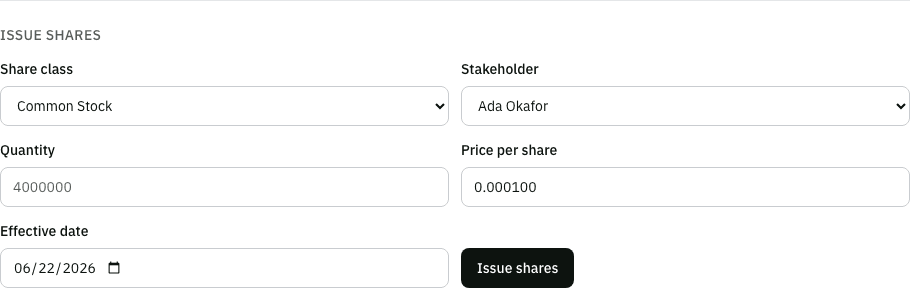
The ledger is append-only, so a mistake is corrected with a new entry, and the original and the correction both stay in the record. There is no undo button in the app: to remove a holding recorded in error, cancel it. For anything a cancellation cannot fix, tell us through beta feedback.
An AI assistant can propose reversing one transaction recorded in error with the reverse_transaction tool, giving the reason. Nothing is erased: a reversal is added after the original, and the cap table then reads as if the original had never been recorded, including on earlier dates. The proposal shows every holder’s shares before and after, and a person with the Admin role confirms it. It is refused when a later transaction depends on the one being reversed (a transfer out of shares whose issuance is being reversed, say), so reverse the later one first. It warns when the transaction has a record outside the ledger that the reversal leaves as it is, such as an exercised grant’s status or a vesting schedule. For now this works only for transactions recorded before the most recent ledger update; a newer one is refused with “Reversing this entry becomes available in the next release.”
A SAFE, convertible note, warrant or RSU grant that should not be on the cap table (a SAFE that was never funded, say) is cancelled with its own Cancel button on the update page. Only an outstanding one can be cancelled. A SAFE or note that already converted in a priced round, or a warrant that was exercised, became shares, and those are cancelled with Cancel shares; restricted stock is the same, because its shares are on the cap table. An RSU granted from a plan goes back to the plan. An AI assistant can propose the same cancellation with the cancel_instrument tool, and a person confirms it.
How many shares you can issue
A class can issue only what its charter authorizes and has not already committed (DGCL §161). Tenacap computes the room for a new issuance or a conversion as:
authorized − issued − reserved for option plans
Issued includes treasury shares, which the company bought back and the board has not yet retired. When an issuance needs more than that room, Tenacap resells treasury shares for the shortfall, and refuses the issuance if treasury cannot cover it either. An option exercise is checked against authorized minus issued, since it draws on its plan’s own reserve. Restricted stock issued from a plan whose reserve is recorded draws on that reserve too: the shares leave the reserve as they are issued (see Restricted stock). The details and a worked example are in Buy-backs and Options & vesting.
The cap-table view
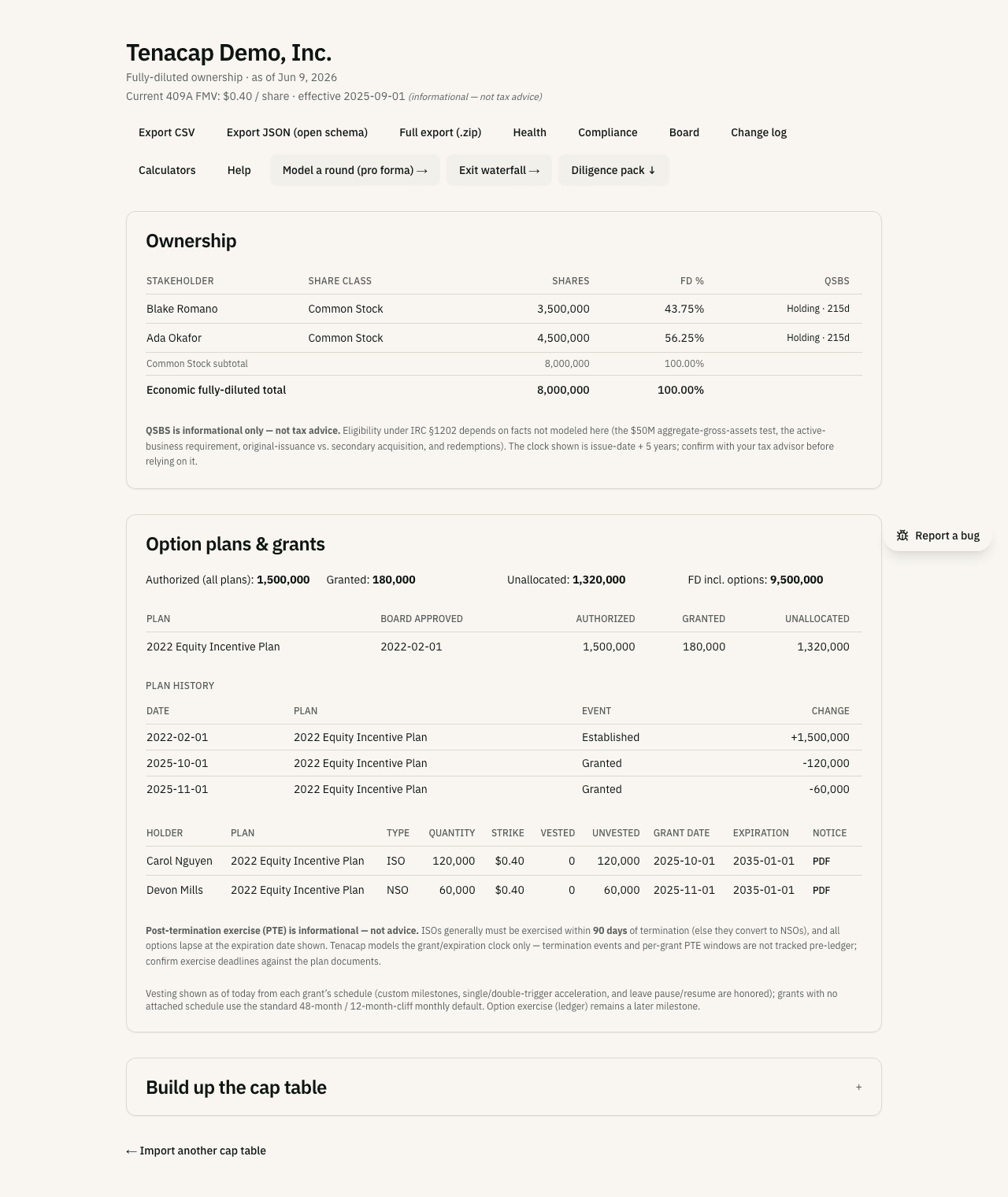
When you log in you land on the company overview: your key numbers, a Needs attention list, and what changed lately. Cap Table → View opens the full cap table. Both pages start with the same bar and tiles.
The bar is your authorized shares, split into what has been done with them: shares issued and outstanding, options (and RSUs) granted, options not yet granted, warrants, shares in treasury, and what is left unissued. Each part is labelled with its number. A bracket over the first parts marks fully diluted. One line beneath adds it up, for example 10,000,000 authorized = 8,000,000 issued + 1,000,000 options + 1,000,000 unissued. If more is issued or reserved than the charter authorizes, the excess shows in red and the line says by how much. An LLC has no authorized ceiling, so its bar has no unissued part.
Under the bar are four tiles:
- Authorized: the ceiling in your charter, summed across classes. It changes only when you record a charter amendment under Structure; select the tile to get there.
- Issued & outstanding: shares people hold today. It moves with issuances, exercises, conversions, repurchases and cancellations, never by typing a number. Shares bought back and not yet retired are issued but not outstanding, so they sit in the bar’s treasury part instead.
- Options: options and RSUs granted, plus the part of the option pool not yet granted.
- Fully diluted: issued and outstanding plus granted options, outstanding RSUs (vested or unvested), unexercised warrants and the unallocated pool. RSUs granted under a plan come out of that plan’s pool, so they are counted once. Every ownership percentage divides by this number.
A second row shows:
- Stakeholders.
- Vested: of the shares and options on a vesting schedule, the share that has vested today.
- SAFEs & notes: how many are outstanding and the total invested. They are not shares yet and are not in fully diluted until they convert.
- The current fair market value per share, labelled by how it was set (a 409A or a board determination), with a 409A status dot that links to the 409A page. It is informational, not tax advice.
Beside the tiles are Update cap table (editors and admins), Export, Model a round (pro forma), Exit waterfall and Diligence pack. Below them the table is split into tabs: Ownership, Convertibles & SAFEs, Warrants, Options, RSUs and Financings. Only the tabs that apply appear (an LLC has no statutory options; a company with no priced rounds has no Financings tab), and each shows a count.
The Ownership tab lists issued equity with one row per shareholder: a holder with several certificates appears once, with their combined shares and FD %. Expand a row to see each holding by class, or select the name to open the holder’s page, which shows every holding, grant and SAFE they own, and their vesting.
FD % is a holder’s shares divided by fully diluted (outstanding shares plus granted options plus outstanding RSUs plus unexercised warrants plus the unallocated pool, plus any phantom units counted in it). For a holder with several certificates, their shares are added up first and divided once. Every percentage is shown to two decimal places, rounded to the nearest (half up): 118,041 shares of 10,975,461 is 1.0755%, shown as 1.08%. Because each row is rounded, a column can add up to 99.99% or 100.01%; the share counts are exact. A voting-only class (no liquidation preference, no dividend, non-participating) is listed for control but left out of the denominator and shows a dash.
Below the holders, the By share class summary lists each issued class, then Issued & outstanding, then each part of fully diluted that is not issued shares: Options granted (or Options & RSUs granted), Options unallocated, Warrants and Phantom units counted, each only when it is not zero. The last line, Fully diluted, is the same total as the Fully diluted tile, and the shares above it add up to it. The holder rows above cover issued shares only, so they add up to the Issued & outstanding line, not to 100%.
The Warrants tab lists unexercised warrants. They hold no shares and show 0% until exercised, and only these reach the exit waterfall. A warrant that has expired, been cancelled or been exercised stays on record: tick Show expired & cancelled to see it, marked with what happened and, for an expired one, the date it lapsed. A warrant marked cancelled after its expiration date reads Expired, with the source’s word in the tooltip. The tab’s count is outstanding warrants only.
You record a 409A under Structure → 409A / FMV history: type it in, or upload the provider’s PDF report and confirm the figures Tenacap pre-fills.
Where things are in the left navigation
- Cap Table: View, Update (editors and admins), Stakeholders, Structure (admins), and Model (round pro forma, exit waterfall, option grant and option pool calculators).
- Approvals & Notices: Board, Proposals, and for editors and admins Shareholders and Documents.
- Compliance & Tax: 409A, Option Holdings and QSBS (C-corps), ASC 718 (editors and admins, C-corps), DE Filing (Delaware companies), and the Change Log (editors and admins).
- Company: Plans (C-corps), Vesting and Import (editors and admins).
- People: who can use this account.
Exporting
The Export menu on the cap table offers the outstanding shares as a CSV, everything as JSON in Tenacap’s open schema, the cap table as a .zip with checksums, and a complete archive. The CSV holds outstanding shares only; options, SAFEs and notes are in the JSON. What each file contains and how the schema is versioned is in Export & open schema.