
Change log & audit trail
Every change to your company - a share issued, a setting flipped, a teammate’s role changed, an export taken - is recorded as its own entry: who did it, when, and what it touched. The whole stream is hash-chained, so a single altered record breaks the chain and shows.
Behind every figure on your cap table is a ledger of the events that produced it. Alongside that ledger sits the change log: a readable trail of who changed what, when, and why. Tenacap has been writing entries since your first action.
Open the change log
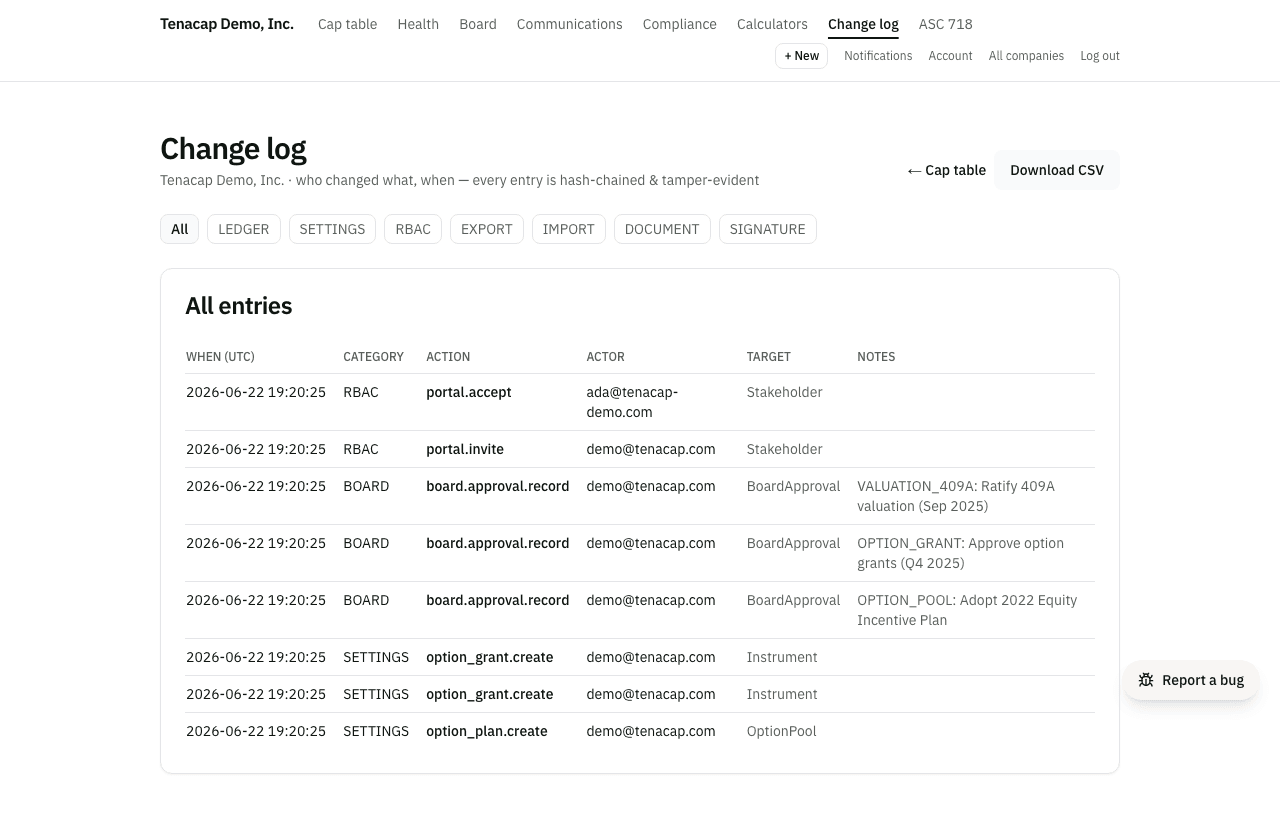
Open Compliance & Tax → Change Log in the left navigation (Editor or Admin). It loads the company’s entries newest-first, 100 at a time, with Older and Newer controls to page through history.
Reading an entry
Each row answers the same six questions:
- When - the timestamp, shown in UTC so it’s unambiguous across time zones.
- Category - the kind of change (ledger, settings, access, and so on - see below).
- Action - what happened, for example a share issuance or a role change.
- Actor - the person who did it, resolved to their email address where we have it. When they confirmed an assistant’s proposal, a line underneath says so and links to the proposal.
- Target - what the change touched, such as a transaction or a stakeholder.
- What changed - each field’s old and new value where the change recorded them, and any reason given with it. Corrections always carry a reason.
Filtering by category
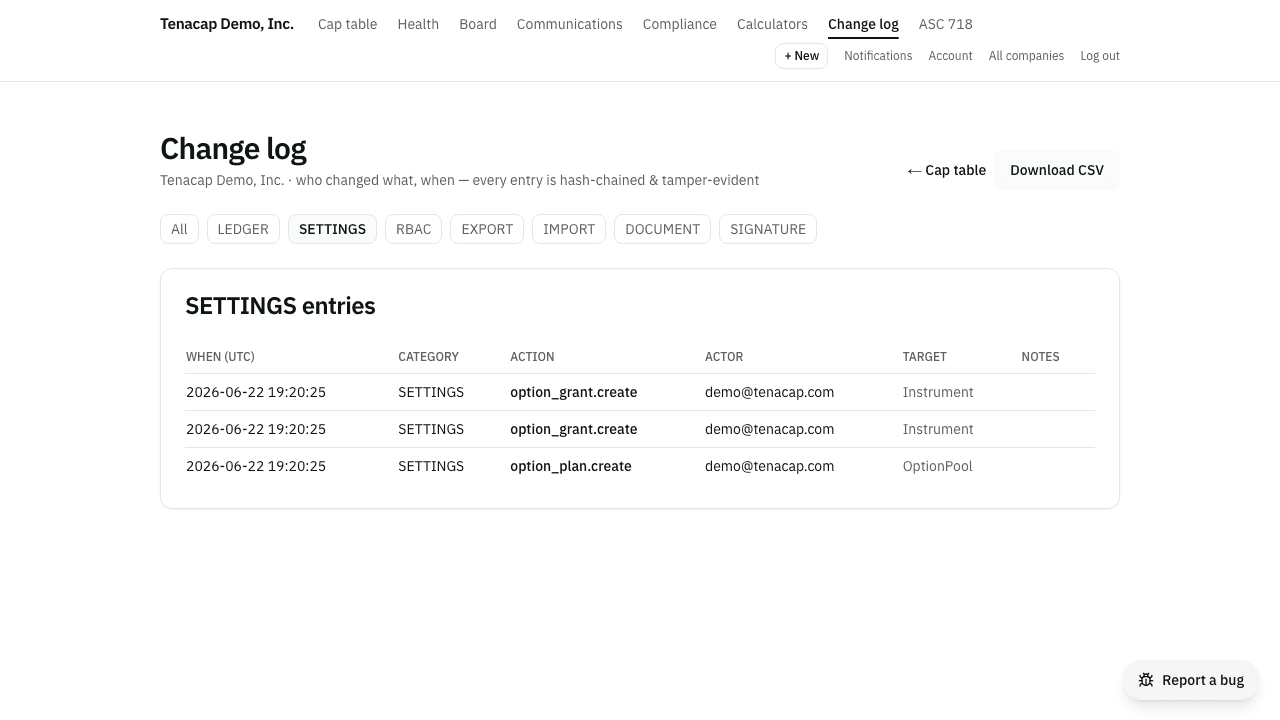
Above the table is a row of filters. Click any category to narrow the view to those entries; click All to come back. The categories are:
- Ledger - cap-table transactions: shares issued, options exercised, SAFEs converted, rounds closed, reversals.
- Settings - changes to company settings.
- RBAC - access changes: who was added, removed, or had their role changed.
- Export - every time data was taken out, including open-schema exports and diligence packs.
- Import - data brought in, for example a cap-table import.
- Document - documents generated or attached.
- Signature - e-signature events on those documents.
Why it’s tamper-evident
Each entry is linked to the one before it by a cryptographic hash - a fingerprint computed from the entry’s contents plus the previous entry’s fingerprint. Change any past entry and its fingerprint no longer matches, which breaks the chain from that point on.
Every time you open the change log we recompute the chain from the stored records and show you the result at the top of the page - the number of entries checked, or the entry where the chain stopped matching. Because the check reads the raw records, a change made directly in the database, outside the app, is caught the same way. That is what tamper-evident means: tampering is possible, hiding it is not.
Where a change has recorded values - a corrected name, a fixed email - the fingerprint covers those too, so the What changed column is evidence. Rewriting what a record says it used to be breaks the chain the way deleting the record would.
It also runs nightly across every company, whether or not anyone opened the page. If a chain stops verifying, the people running Tenacap are paged that night.
The check covers the fields that go into each entry’s fingerprint - when it happened, who did it, what it was, what it touched, and the values it moved - but not the free-text note beside it.
Exporting for diligence
Use Download CSV to take the most recent 5,000 entries out as a spreadsheet. The export respects whatever category filter you have on, and it includes each entry’s chain hash, so an auditor or counsel can verify the trail themselves.
When you’re assembling a data room, the change log also ships inside the diligence pack, the zip that bundles your cap-table export, compliance reports, and an audit-log excerpt with a checksum manifest. The complete archive carries every entry.
Who can see it
The change log is read-only and scoped to the company you’re in. Viewing it needs the Editor role or higher; a Viewer can see the cap table but not the audit trail behind it. Nobody, at any role, can edit or delete an entry from the app.